


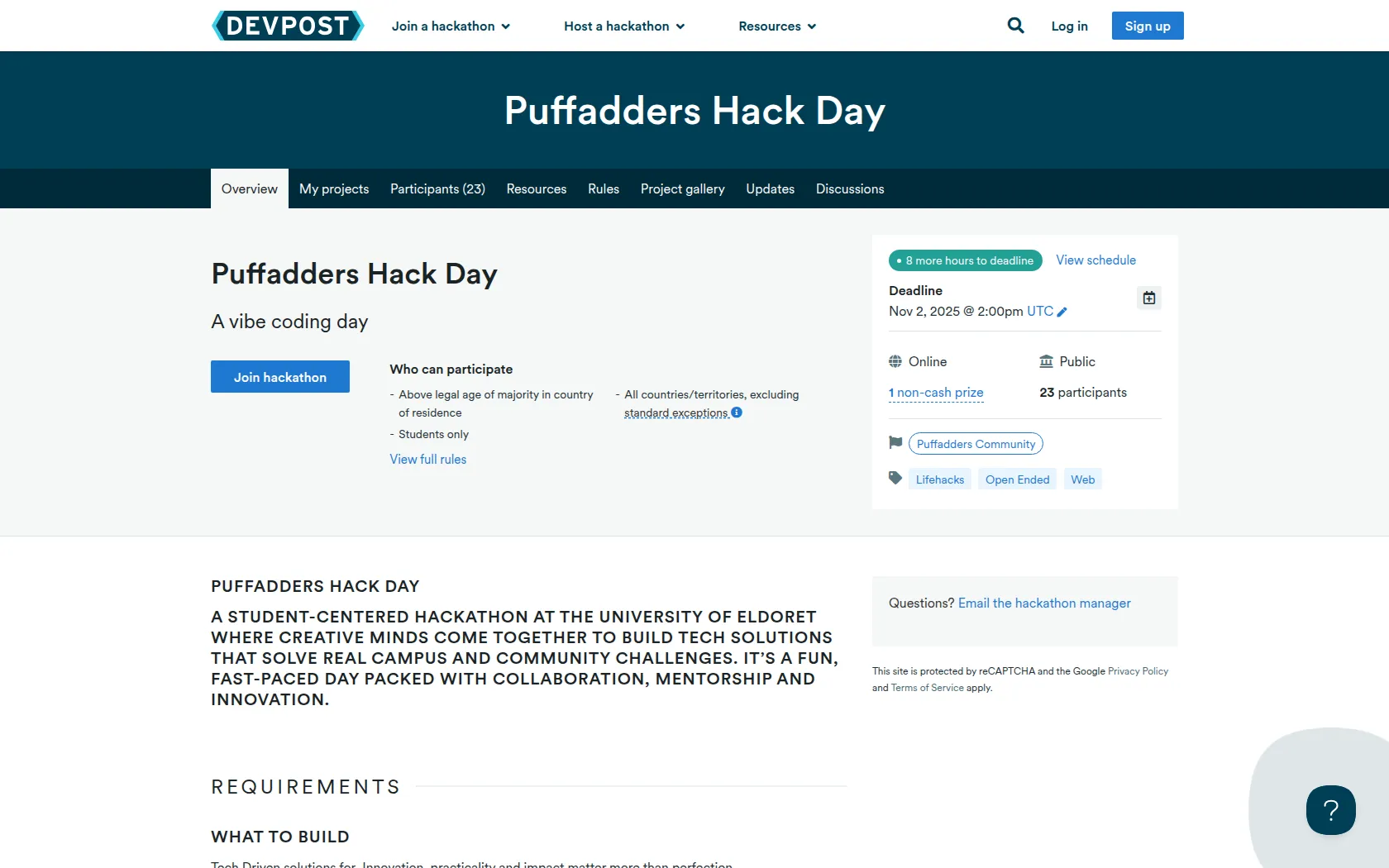

Puffadders Hack Day
A student-centered hackathon at the University of Eldoret where creative minds come together to build tech solutions that solve real campus and community challenges. It’s a fun, fast-paced day packed with collaboration, mentorship and innovation.
Requirements
What to Build
Tech Driven solutions for Innovation, practicality and impact matter more than perfection.
What to Submit
A brief project description , the problem, solution and tech stacks used.
Prizes
Best Use of Gemini API
It’s time to push the boundaries of what's possible with AI using Google Gemini. Check out the Gemini API to build AI-powered apps that make your friends say WHOA. So, what can Gemini do for your hackathon project?
1. Understand language like a human and build a chatbot that gives personalized advice
2. Analyze info like a supercomputer and create an app that summarizes complex research papers
3. Generate creative content like code, scripts, music, and more
Think of the possibilities… what will you build with the Google Gemini API this weekend?
Get started -> https://mlh.link/gemini-quickstart
Devpost Achievements
Submitting to this hackathon could earn you:
Judges

Enock Juma

James Ngandu

Major League Hacking

Preston Nyamweya
Judging Criteria
-
Impact and Usefulness
Does the project solve a real-world problem, and what is the potential impact of the solution? Projects with tangible benefits to society, businesses, or specific communities are often rated highly. -
Innovation and Creativity
How unique is the idea? Does the project introduce a new approach to a problem or application of AI, or is it a novel solution to an existing challenge? Judges look for originality and out-of-the-box thinking.